Cell Repair Mississauga: The Complete Same-Day Troubleshooting & Diagnostic Guide
Quick Answer Summary
Most common phone failures (no power, charging issues, water exposure) can be diagnosed at home in minutes, while confirming that professional same-day doorstep cell repair Mississauga or secure mail-in remains the safest path when hardware is involved.
Your phone just died, refuses to charge, or took a swim. The first reaction is almost always panic—photos, banking apps, work messages, everything feels suddenly at risk. Take a breath. The majority of “dead” phones are either frozen in software or suffering from a simple, reversible issue that you can safely test at home in under five minutes.
This guide walks you through the exact diagnostic sequence used by professional technicians. Follow the steps in order. If the device responds, you may have just saved yourself a repair visit. If it does not, you will know with certainty that the problem is hardware and can book the right solution immediately.
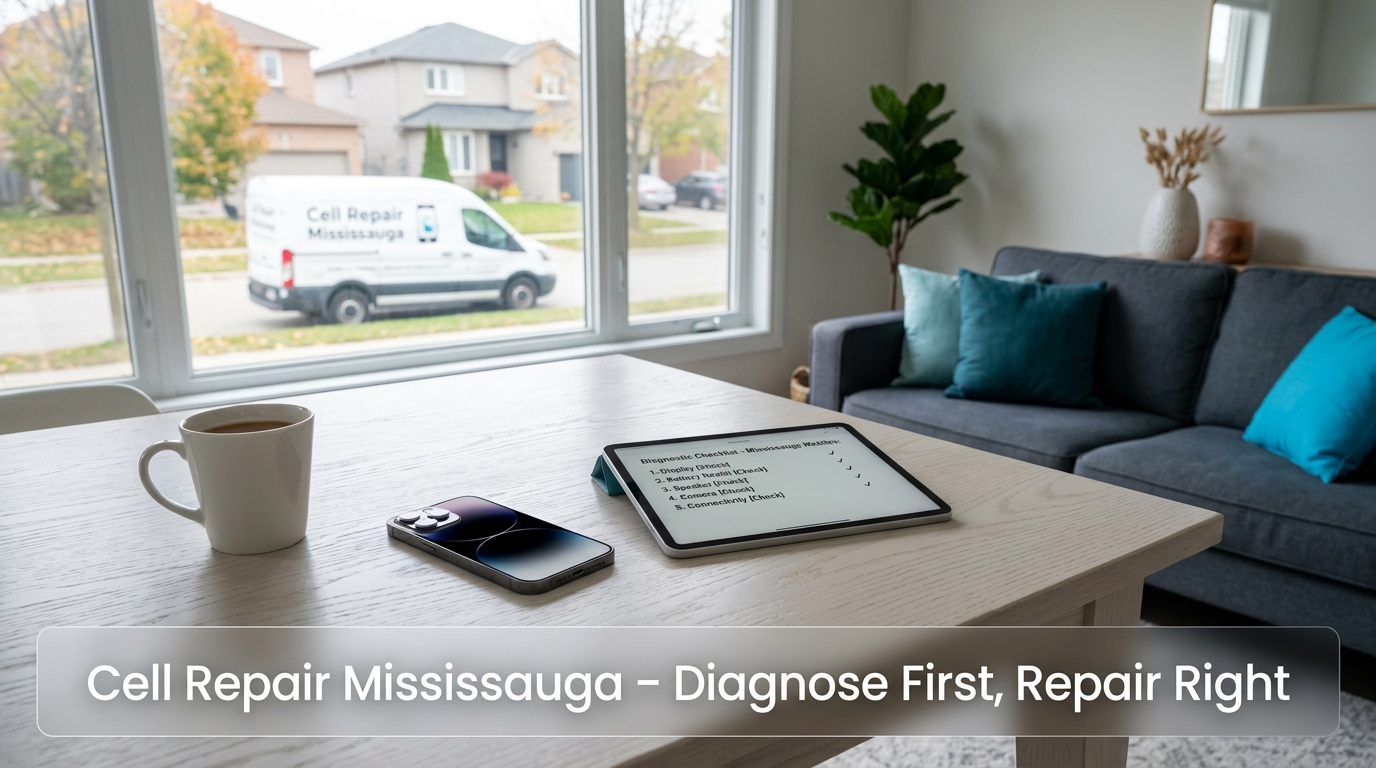
Calm home diagnostic setup with same-day mobile repair options in Mississauga.
Book Same-Day Driveway Diagnostic
Our certified mobile technician comes to your home or office anywhere in Mississauga and the surrounding GTA within our 2-hour driving boundary. Most diagnostics and common repairs are completed while you watch.
Outside the GTA or prefer not to wait? Generate a free prepaid, fully insured Canada Post or Purolator label and ship your device. Most repairs are completed within 24 hours of arrival.
Both paths include our Zero Data-Browsing Policy, premium Grade-A parts, and Limited Lifetime Warranty. No physical storefront is required—we come to you or you ship to us.
My Cell Phone Won’t Turn On—Is It Dead or Just Frozen?
Quick Answer
A simple software freeze is far more common than a dead battery or motherboard failure. Perform a forced restart first; if the device remains unresponsive after two attempts and shows no charging indicator, the issue is almost certainly hardware and requires professional phone diagnostics Mississauga or certified hardware services.
A completely unresponsive phone is rarely “dead.” In the majority of cases the operating system has locked up, the battery has entered a protective deep-discharge state, or a temporary software conflict has frozen the display and power button. A forced restart (hard reset) resolves the software freeze without deleting any data. Only after two failed forced restarts and zero charging response should you treat the device as a hardware failure requiring professional attention.
How to Force-Restart an iPhone
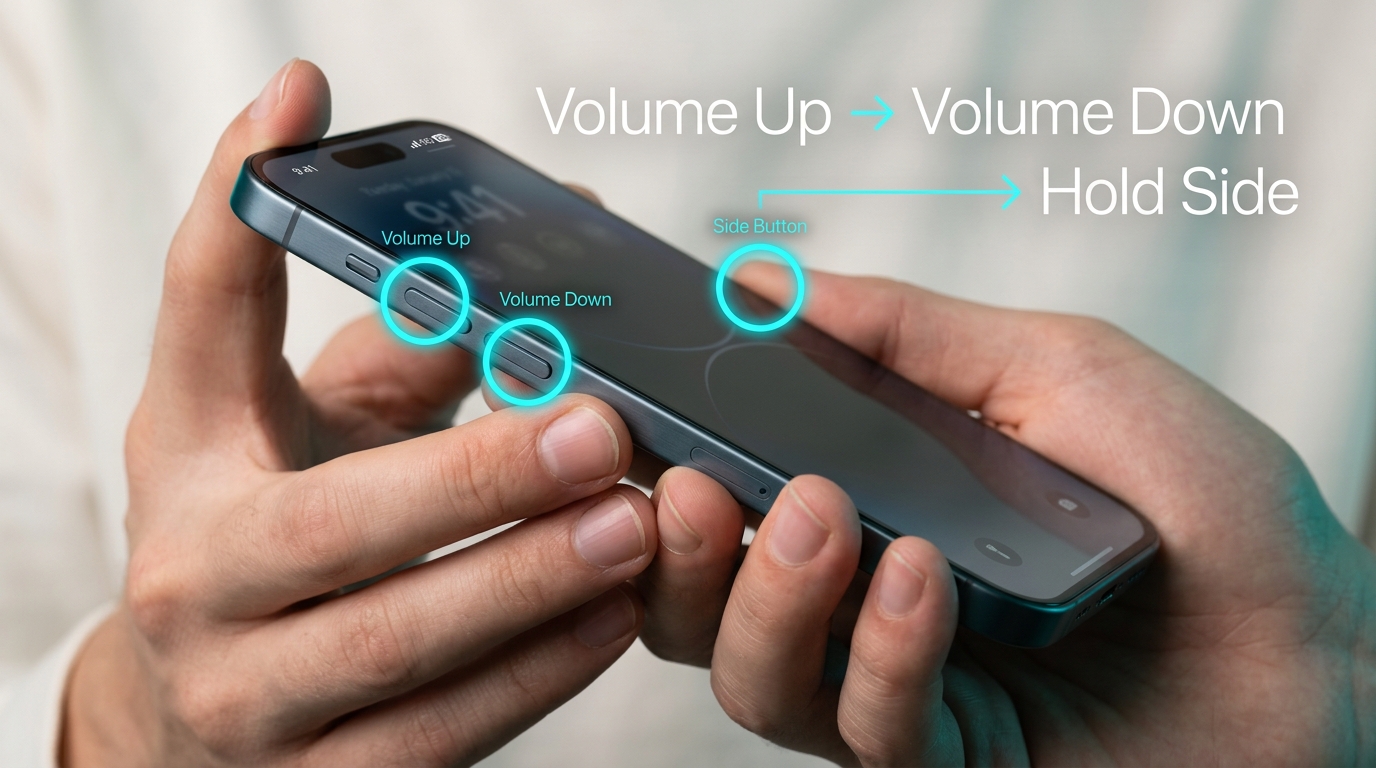
Quickly press and release the Volume Up button.
Quickly press and release the Volume Down button.
Press and hold the Side button. Keep holding even after the Apple logo appears (usually 10–20 seconds).
Release when the lock screen or “Hello” screen appears.
iPhone button sequence: Volume Up → Volume Down → Hold Side Button.
If the Apple logo never appears and the phone remains black, connect a known-good cable and charger for at least 20 minutes, then repeat the sequence once more.
How to Force-Restart Samsung Galaxy & Google Pixel
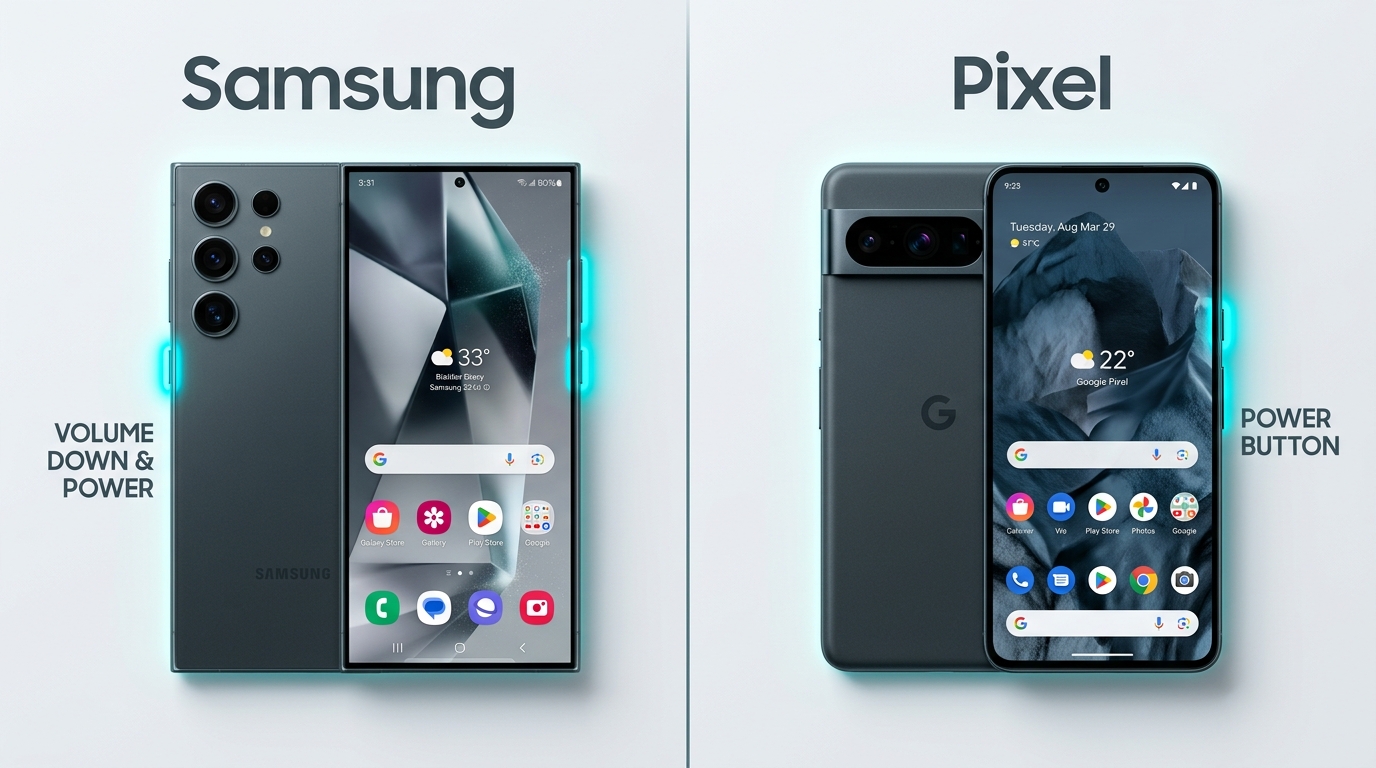
Most Samsung Galaxy models: Press and hold the Volume Down + Power (Side) buttons together for 10–20 seconds until the Samsung logo appears.
Google Pixel: Press and hold the Power button for up to 30 seconds, or Volume Down + Power if the first method fails.
Older Android devices: Power + Volume Up is common; consult your model if neither combination works.
Force restart combinations for Samsung Galaxy and Google Pixel devices.
After a successful forced restart, monitor the device for random reboots or sudden shutdowns—these often point to a failing battery that will need replacement soon. Explore our battery replacement services if symptoms persist.
Why Is My Phone Not Charging? (Dirt vs. Port Damage)
Quick Answer
Pocket lint and debris cause the majority of intermittent charging problems. A careful visual inspection and gentle cleaning often restore function. Persistent failure, heat at the port, or physical wobble of the cable indicates worn contacts or board-level damage that needs professional charging-port repair or local Mississauga home service.
Intermittent or complete charging failure is one of the most common reasons Mississauga residents search for cell phone repair Mississauga. In the majority of cases the culprit is not a broken battery or charging board—it is compacted pocket lint, dust, or debris lodged inside the Lightning or USB-C port. A safe, careful cleaning restores charging for many users. Persistent failure after cleaning almost always indicates physical wear of the port contacts or damage to the charging flex or motherboard that requires professional micro-soldering.
Safe Port Inspection & Cleaning Steps
Power the phone off completely.
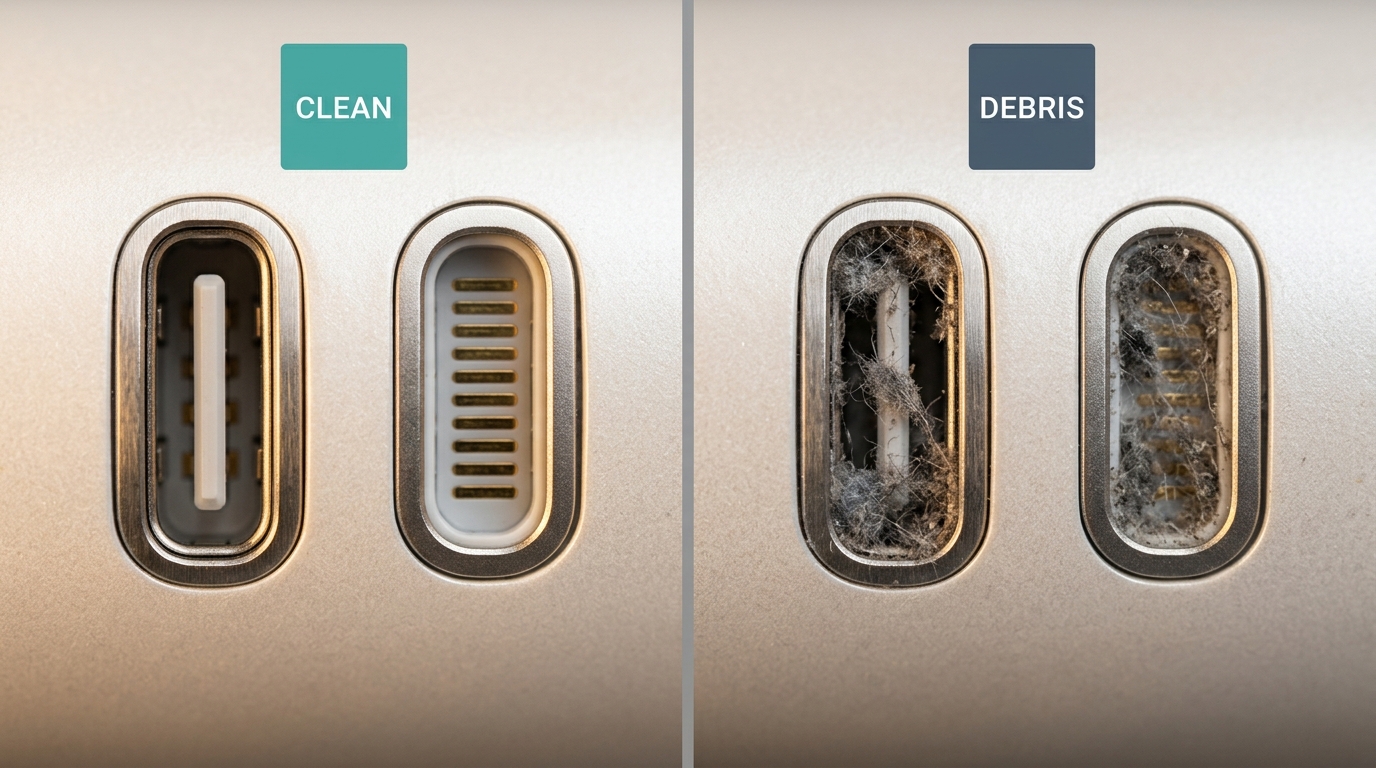
Use a bright light and magnifying glass (or phone camera zoom) to look straight into the port. Look for grey or dark compacted debris.
Take a wooden or plastic toothpick (never metal) and gently scrape along the sides and bottom of the port. Work slowly.
Follow with a soft anti-static brush or a short burst of compressed air held upright (so propellant does not spray inside).
Attempt charging with a known-good cable and wall adapter.
Macro comparison of a clean USB-C/Lightning port vs. a debris-clogged port.
Symptoms That Signal Real Port or Board Damage
The cable only charges when held at a specific angle or with constant pressure.
The port feels loose or the cable wobbles significantly.
The phone becomes unusually warm exactly at the charging port.
Charging works on wireless but never on cable (or vice versa).
Visible bent, missing, or corroded pins inside the port.
Any of these symptoms means the port or the board-level charging circuit needs professional attention. Continuing to force a cable can cause further damage. Book our certified charging port replacement service for a same-day resolution.
The Wet Phone Protocol—What To Do (And What NOT To Do)
Quick Answer
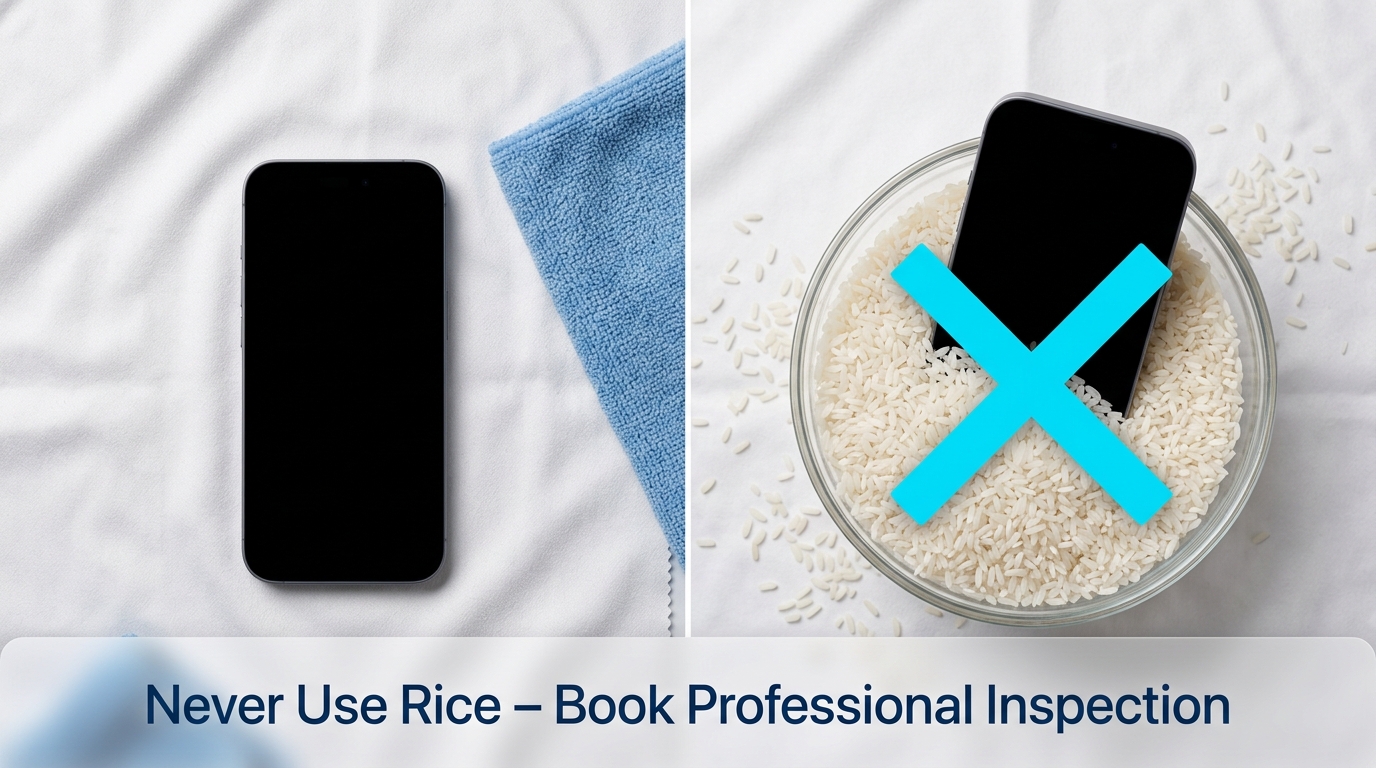
Immediately power the device off, wipe external moisture, and never attempt to charge it or place it in rice. Rice dust accelerates corrosion on the motherboard. Book a same-day doorstep diagnostic in Mississauga or start a secure mail-in repair so corrosion can be stopped before permanent damage occurs.
Liquid damage is time-critical. Every minute the device remains powered on or is plugged into a charger increases the chance of permanent short circuits and corrosion across the motherboard. The single most damaging piece of advice still circulating is “put it in rice.” Rice does not absorb moisture from inside a sealed phone; instead, fine starch dust enters the ports and speakers and accelerates corrosion once the phone is powered back on.
Correct Emergency Steps After Liquid Exposure
Power the device off immediately (forced restart if the screen is unresponsive). Do not attempt to turn it back on.
Remove any case, SIM tray, and external accessories.
Wipe all external surfaces thoroughly with a soft, absorbent, lint-free cloth.
Gently shake the phone with the ports facing downward to encourage residual liquid to exit.
Place the device in a dry, open area with good airflow—never in a sealed container, never in rice, never in a bag of silica unless the silica is fresh and the ports remain open.
Do not plug the phone into any charger or computer.
Book a same-day doorstep diagnostic or start a secure mail-in as quickly as possible. Professional ultrasonic cleaning and corrosion treatment are far more effective when performed within the first 24–48 hours.
Emergency liquid response protocol vs. the damaging rice myth.
Why the Rice Myth Makes Damage Worse
Rice particles are abrasive and hygroscopic. They draw some surface moisture but leave internal liquid untouched while introducing conductive dust into the very circuits that are already compromised. Technicians routinely see rice-related secondary damage that is more difficult and expensive to repair than the original liquid exposure.
The CellRevive’s Zero-Exposure Data Privacy Protocol
Quick Answer
You never need to share your lock-screen passcode for standard hardware diagnostics or repairs. Enable Apple’s Repair State, Samsung Maintenance Mode, or Android Repair Mode before the technician arrives; your photos, messages, and apps remain completely inaccessible during service in Mississauga or via our repair catalogue.
Mississauga residents are rightly concerned about handing over a device that contains years of personal photos, private messages, and banking apps. Industry research has documented that many repair providers request lock-screen passcodes even when they are not required and that technicians sometimes browse personal data. The CellRevive was built to eliminate that risk.
You never need to share your passcode for standard hardware diagnostics, screen replacements, battery replacements, or charging-port repairs. Before our technician arrives at your Mississauga home or office (or before you ship the device), enable the manufacturer’s privacy mode:
iPhone (iOS 17.5 and later): Open Find My → select your device → scroll to Remove This Device → choose the Repair State option when prompted. The phone remains trackable and functional for testing while personal data stays locked.
Samsung Galaxy: Settings → Device care → Maintenance Mode → Turn on.
Google Pixel / Android 14+: Settings → System → Repair Mode.
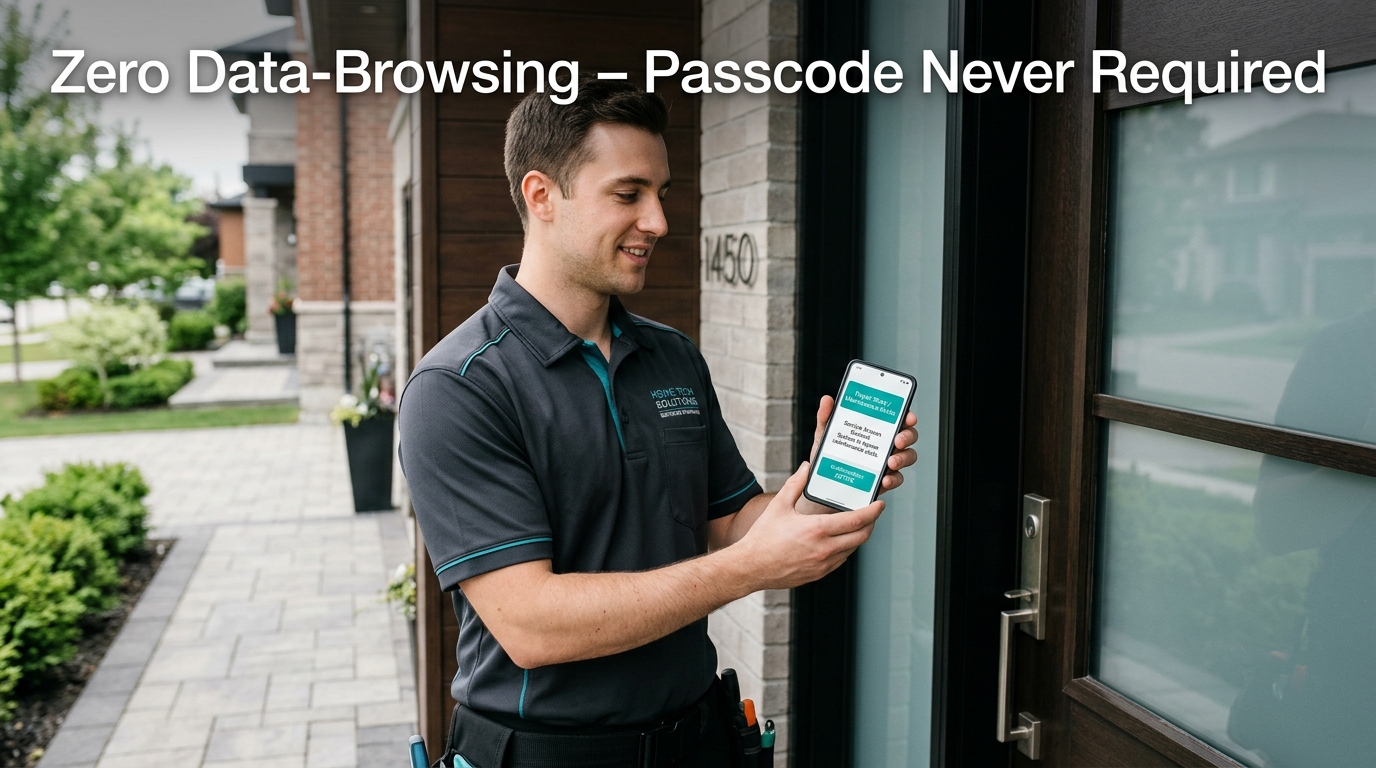
Zero Data-Browsing Guarantee — technicians test hardware with data locked into Repair Mode.
Once these modes are active, the technician can fully test hardware functions while your photos, messages, accounts, and apps remain completely inaccessible. Our Zero Data-Browsing Policy is absolute: tools touch the hardware; no one browses your data.
Local Same-Day Coverage Across Mississauga & the GTA
Quick Answer
The CellRevive provides mobile same-day cell repair Mississauga in Port Credit, Streetsville, Cooksville, Erin Mills, Meadowvale, Malton, and all surrounding neighbourhoods, plus nearby GTA municipalities within a strict 2-hour driving boundary. Extreme Ontario cold and summer heat make on-site professional service essential. View our full Mississauga coverage map or explore our complete repair options.
The CellRevive provides true same-day mobile cell repair Mississauga across every neighbourhood, including Port Credit, Streetsville, Cooksville, Erin Mills, Meadowvale, Malton, and the City Centre / Square One corridor. We also serve Oakville, Brampton, and surrounding Greater Toronto Area municipalities that fall inside our strict 2-hour driving boundary. No physical storefront address is published—our technicians travel directly to your home or office.
Ontario’s climate makes professional on-site service especially valuable. Extreme winter cold reduces battery capacity, makes glass more brittle, and increases the chance of sudden shutdowns. Summer heat and humidity accelerate battery swelling and corrosion inside charging ports. When a device fails under these conditions, a mobile technician who can diagnose and repair on the spot prevents the problem from worsening during a long trip to a distant shop.
Whether you are near the Port Credit GO station, in the Erin Mills Town Centre area, or farther out within our service radius, same-day driveway service is available. Residents outside the 2-hour boundary can use our Canada-wide prepaid mail-in service with identical privacy protections, parts quality, and warranty coverage.
When DIY Ends and Professional Cell Repair Mississauga Begins
Quick Answer
If forced restarts, port cleaning, and proper liquid-response steps fail, the next safe action is a professional diagnostic. Book a same-day driveway visit in Mississauga or generate a prepaid mail-in label—both carry the same Zero Data-Browsing Policy and Limited Lifetime Warranty across all services.
If the forced restart sequence fails twice, port cleaning does not restore charging, or the device has been exposed to liquid, further DIY attempts risk permanent damage. At that point the safest and most cost-effective action is a professional diagnostic.
Book Your Professional Diagnostic Today
Book a same-day driveway visit through our online form or generate a prepaid, insured shipping label for mail-in service. Both options include: