
"Most common phone failures (no power, charging issues, water exposure) can be diagnosed at home in minutes, while confirming that professional same-day doorstep cell repair Mississauga or secure mail-in remains the safest path when hardware is involved."
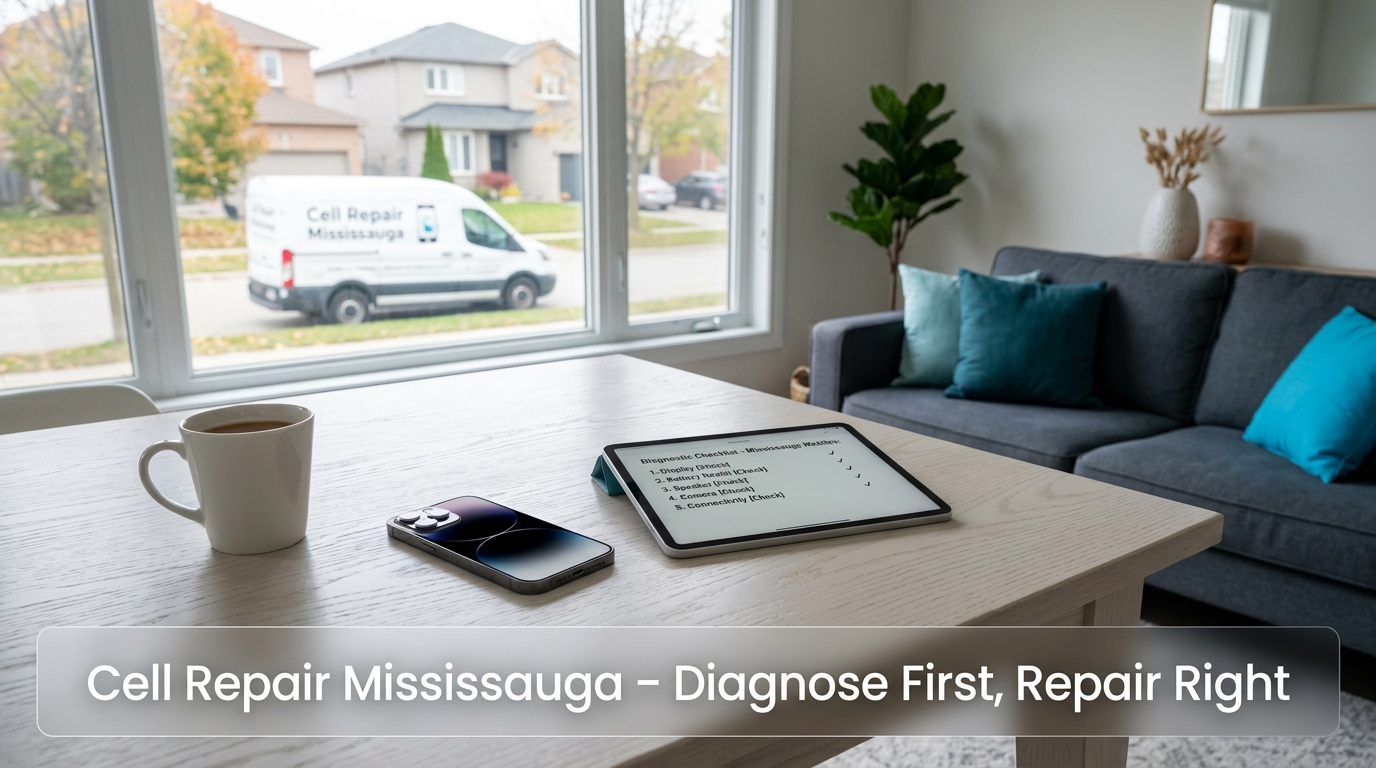
Calm home diagnostic setup with same-day mobile repair options in Mississauga.
Your phone just died, refuses to charge, or took an unexpected swim. The initial reaction is almost always panic—your photos, banking apps, and work messages feel suddenly at risk. Take a breath. The majority of unresponsive phones are either locked in a temporary software freeze or suffering from a simple, easily fixable issue that you can safely test at home in under five minutes.
This step-by-step diagnostic guide walks you through the exact sequence used by professional phone technicians in Mississauga. Follow the steps in order. If your device responds, you may have saved yourself an unnecessary repair visit. If it does not, you will know with certainty that hardware service is needed and can book the right solution immediately.
Our certified mobile technician comes directly to your home or office anywhere in Mississauga and the surrounding GTA. Most diagnostics and repairs are completed on-site in under 45 minutes.
Book Driveway VisitOutside Mississauga or prefer not to wait? Create a free prepaid, fully insured Canada Post label and ship your device. Most repairs are completed within 24 hours of arrival.
Start Prepaid Mail-In1. My Cell Phone Won’t Turn On—Is It Dead or Just Frozen?
A simple software freeze is far more common than a dead battery or motherboard failure. Perform a forced restart first; if the device remains unresponsive after two attempts and shows no charging indicator, the issue is almost certainly hardware and requires professional phone diagnostics in Mississauga or certified hardware repair.
A completely unresponsive phone is rarely completely dead. In most cases, the operating system has frozen, the battery has entered a protective deep-discharge state, or a temporary software conflict has locked the screen and power button. A forced restart (hard reset) clears the software state without erasing your data.
How to Force-Restart an iPhone
- Quickly press and release the Volume Up button.
- Quickly press and release the Volume Down button.
- Press and hold the Side button. Keep holding even after the screen turns off (usually 10–20 seconds).
- Release when the Apple logo appears on screen.
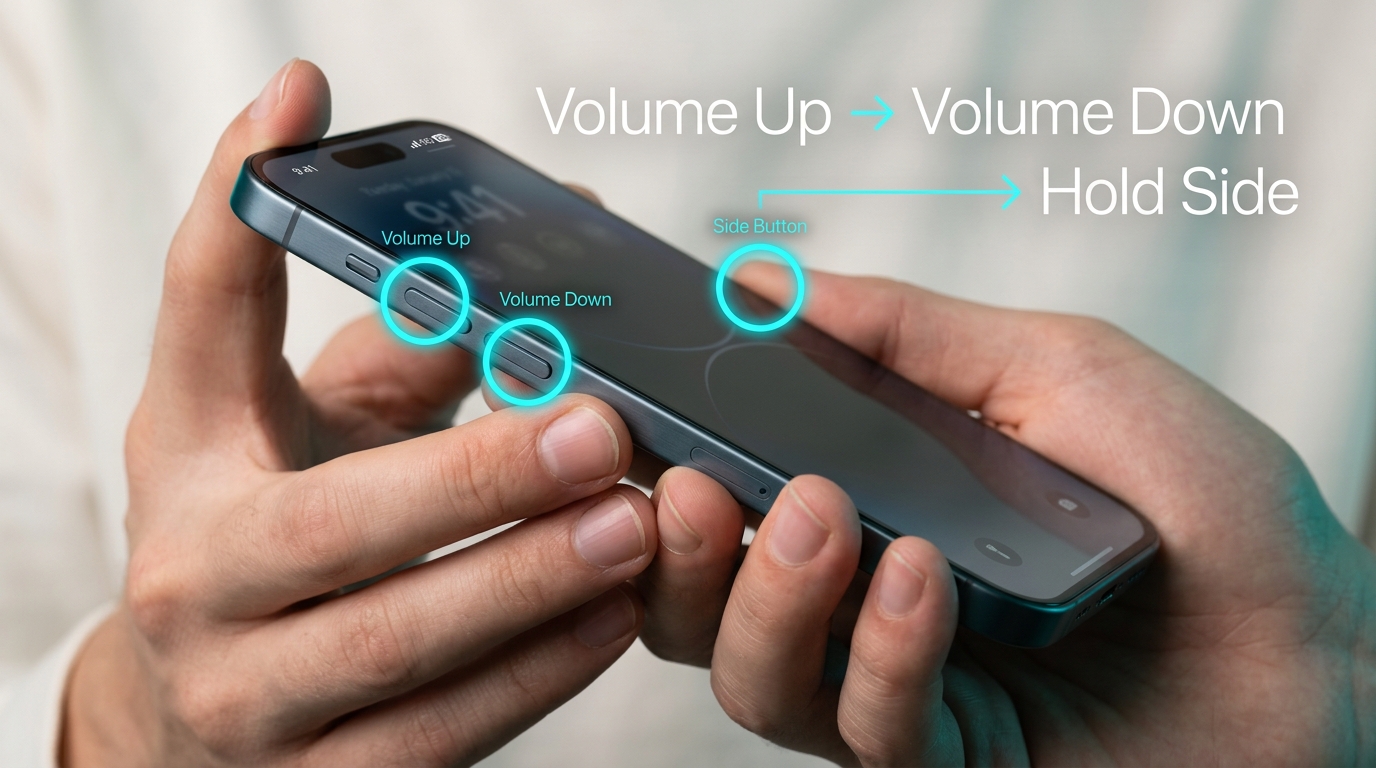
iPhone button sequence: Volume Up → Volume Down → Hold Side Button until Apple logo appears.
If the Apple logo does not appear after 20 seconds, plug your iPhone into a working charger for at least 20 minutes, then try the button sequence again.
How to Force-Restart Samsung Galaxy & Google Pixel
- Samsung Galaxy: Press and hold the Volume Down + Power (Side) buttons simultaneously for 10–20 seconds until the Samsung logo appears.
- Google Pixel: Press and hold the Power button for up to 30 seconds until the device restarts.
- Other Android Devices: Hold Power + Volume Down together for 15 seconds.
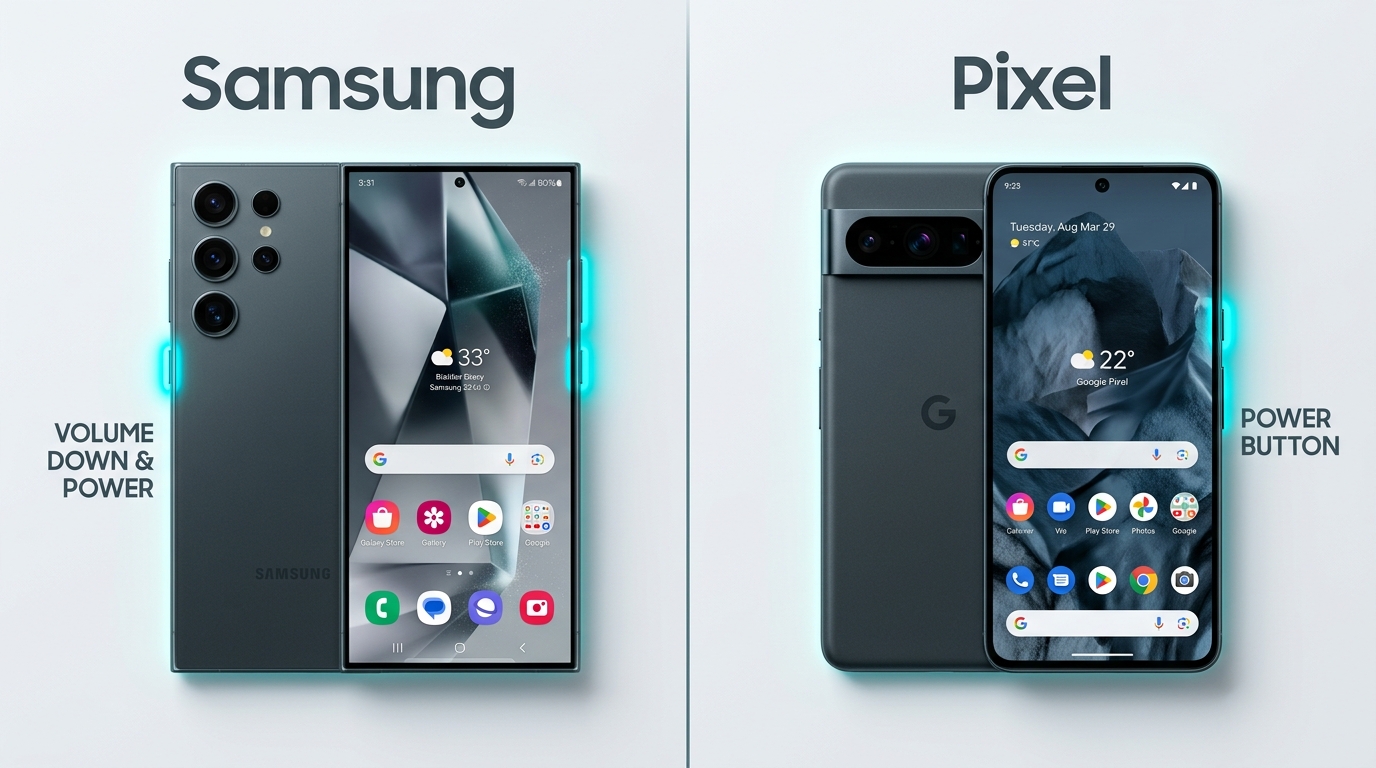
Force restart button combinations for Samsung Galaxy and Google Pixel phones.
2. Why Is My Phone Not Charging? (Dirt vs. Port Damage)
Pocket lint and debris cause over 70% of charging port issues. A gentle visual inspection and careful cleaning often resolve the problem. Persistent failure, overheating at the port, or a loose cable connection indicates worn contacts or board-level damage that requires professional charging port replacement.
When a phone refuses to charge or charges intermittently, most people assume the battery is failing. In reality, lint and pocket debris get compressed into the bottom of USB-C and Lightning ports every time you plug in a cable, preventing full electrical contact.
Safe Steps to Clean Your Charging Port
- Power off your device completely.
- Use a bright flashlight to inspect inside the port for compressed dark lint.
- Gently use a wooden or plastic toothpick (never a metal pin or paperclip) to scrape out debris.
- Use a soft anti-static brush or a quick burst of compressed air to clear residual dust.
- Plug in a known-good charging cable and check if charging resumes normally.
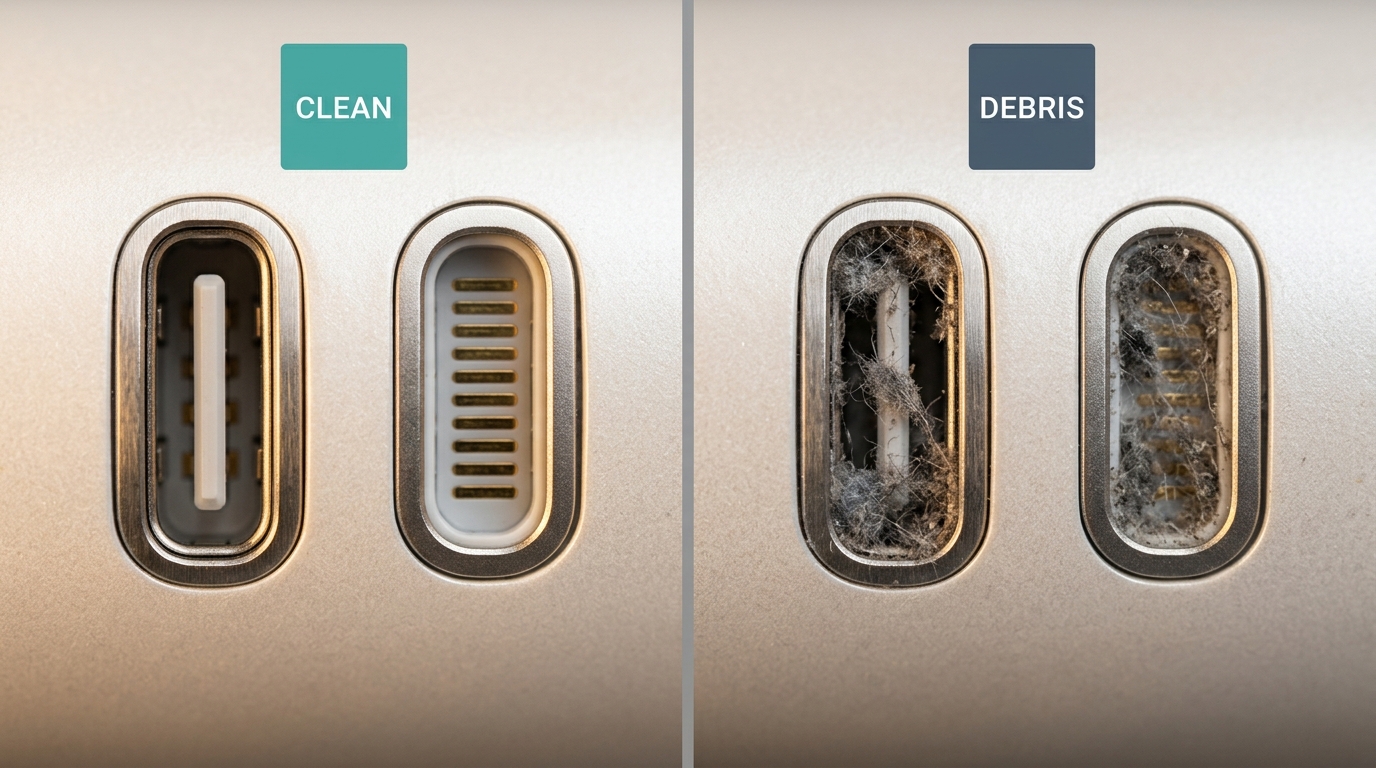
Macro visual comparison: Clean USB-C/Lightning port vs. a port clogged with pocket lint.
Signs of Permanent Hardware Damage
- The cable only charges when held at a specific angle or pushed hard.
- The charging port feels loose or wobbles physically.
- The bottom edge of the phone becomes hot during charging attempts.
- Visible bent or corroded pins inside the port opening.
3. The Wet Phone Protocol—What To Do (And What NOT To Do)
Turn off the device immediately, dry the exterior, and never plug it into a charger. Do NOT put your phone in rice—rice dust combines with moisture to create a corrosive paste inside the circuits. Book a same-day diagnostic in Mississauga for professional ultrasonic cleaning before permanent corrosion takes hold.
Liquid damage requires immediate action. Every minute electrical current flows through a wet motherboard, electrochemical corrosion destroys microscopic copper traces and micro-components.
Emergency Steps After Water Exposure
- Power off the device immediately. Do not attempt to turn it on or check if it works.
- Remove any protective case, SIM card tray, and external accessories.
- Wipe all external surfaces thoroughly with a dry, lint-free cloth.
- Gently tap the phone against your hand with ports facing downward to drain excess water.
- Leave the phone in a dry area with active air movement (near a fan or open window).
- Never plug the phone into a charger or wall outlet.
- Schedule professional ultrasonic board cleaning within 24 to 48 hours.
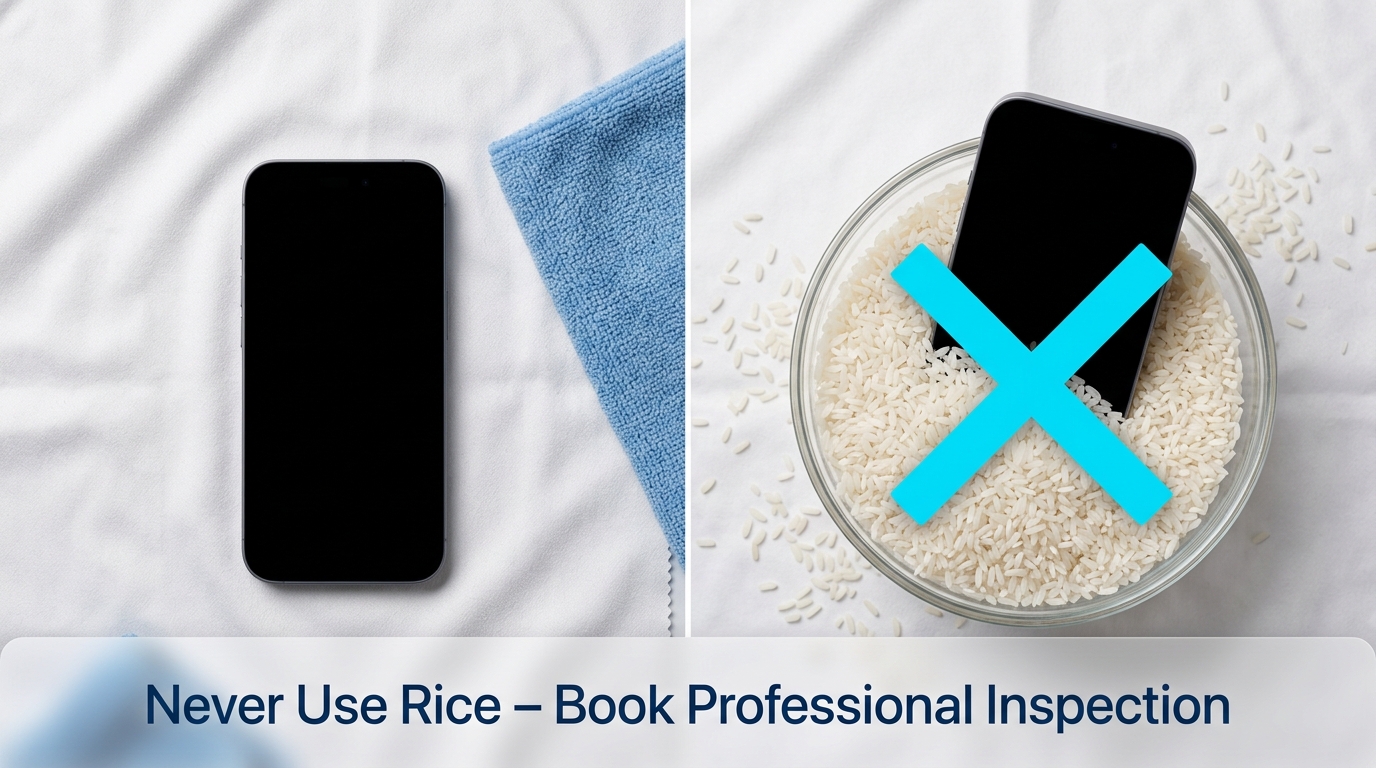
Emergency liquid response protocol vs. the damaging uncooked rice myth.
Why Uncooked Rice Makes Damage Worse
Putting a wet phone in rice is a persistent myth. Uncooked rice contains fine starch powder that enters phone ports and speaker grilles. When starch powder mixes with internal water, it forms a sticky paste that traps moisture directly against circuit boards and accelerates corrosion.
4. Zero Data Exposure — Protecting Your Personal Privacy
You never need to give out your lock-screen passcode for standard phone repairs. Enable Apple Repair State, Samsung Maintenance Mode, or Android Repair Mode before service so your photos, messages, and banking apps remain completely locked while technicians test hardware components.
Your smartphone holds personal memories, private messages, financial data, and sensitive work documents. At The CellRevive, we operate under a strict Zero Data-Browsing Policy.
How to Enable Built-In Privacy Modes Before Service
- iPhone (iOS 17.5+): Open Find My → Select your device → Choose Repair State. Personal data is isolated while hardware diagnostics remain enabled.
- Samsung Galaxy: Open Settings → Device Care → Maintenance Mode → Tap Turn On.
- Google Pixel (Android 14+): Open Settings → System → Repair Mode.
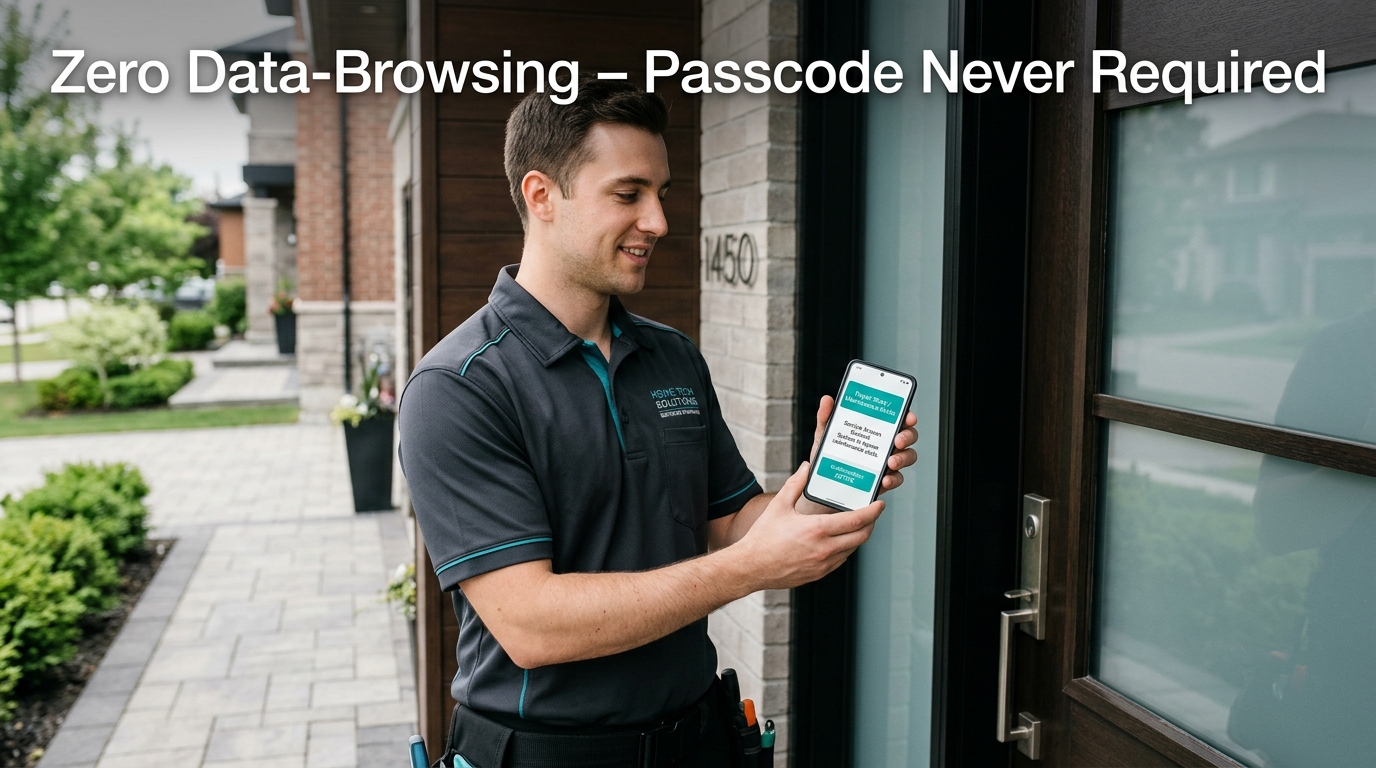
Zero Data-Browsing Guarantee: Hardware testing performed with personal data securely locked.
5. Local Mobile Phone Repair Across Mississauga & GTA
The CellRevive provides mobile same-day phone repair in Port Credit, Streetsville, Cooksville, Erin Mills, Meadowvale, Malton, and Square One, plus nearby GTA communities. Our mobile repair vehicles bring a complete workstation straight to your driveway.
Whether you are located near Square One shopping centre, commuting via Port Credit GO station, or working in Meadowvale, our certified mobile technicians arrive at your home or office with a fully equipped mobile repair station. Most screen, battery, and port repairs take under 45 minutes while you carry on with your day.
Ready for Professional Phone Repair in Mississauga?
Book an instant same-day driveway appointment or generate a prepaid Canada-wide shipping label. Every repair includes our Limited Lifetime Warranty and Zero Data-Browsing Policy.
- Zero Data-Browsing Security Guarantee
- Premium OEM-Quality Parts
- Limited Lifetime Parts & Labor Warranty
- Transparent Pricing (No Fix, No Fee)
Need professional help with screen replacement in Mississauga?
The CellRevive offers same-day doorstep home repair across Mississauga and 2-5 day insured mail-in repair from anywhere in Canada.